RESOURCES
WinOLS CSV Import Guide
The ECU Maps CSV is a map list. When you import it into WinOLS, it becomes a map pack — detected maps with addresses, axes, and labels ready for professional verification.
Download the WinOLS-compatible CSV from your ECU Maps analysis
Open the matching original firmware project in WinOLS
Use Project → Export & import → Update map list on the basis of CSV/JSON file…
Confirm maps were created under My maps
Validate addresses, axes, factors, dimensions, and labels before editing
STEP 1
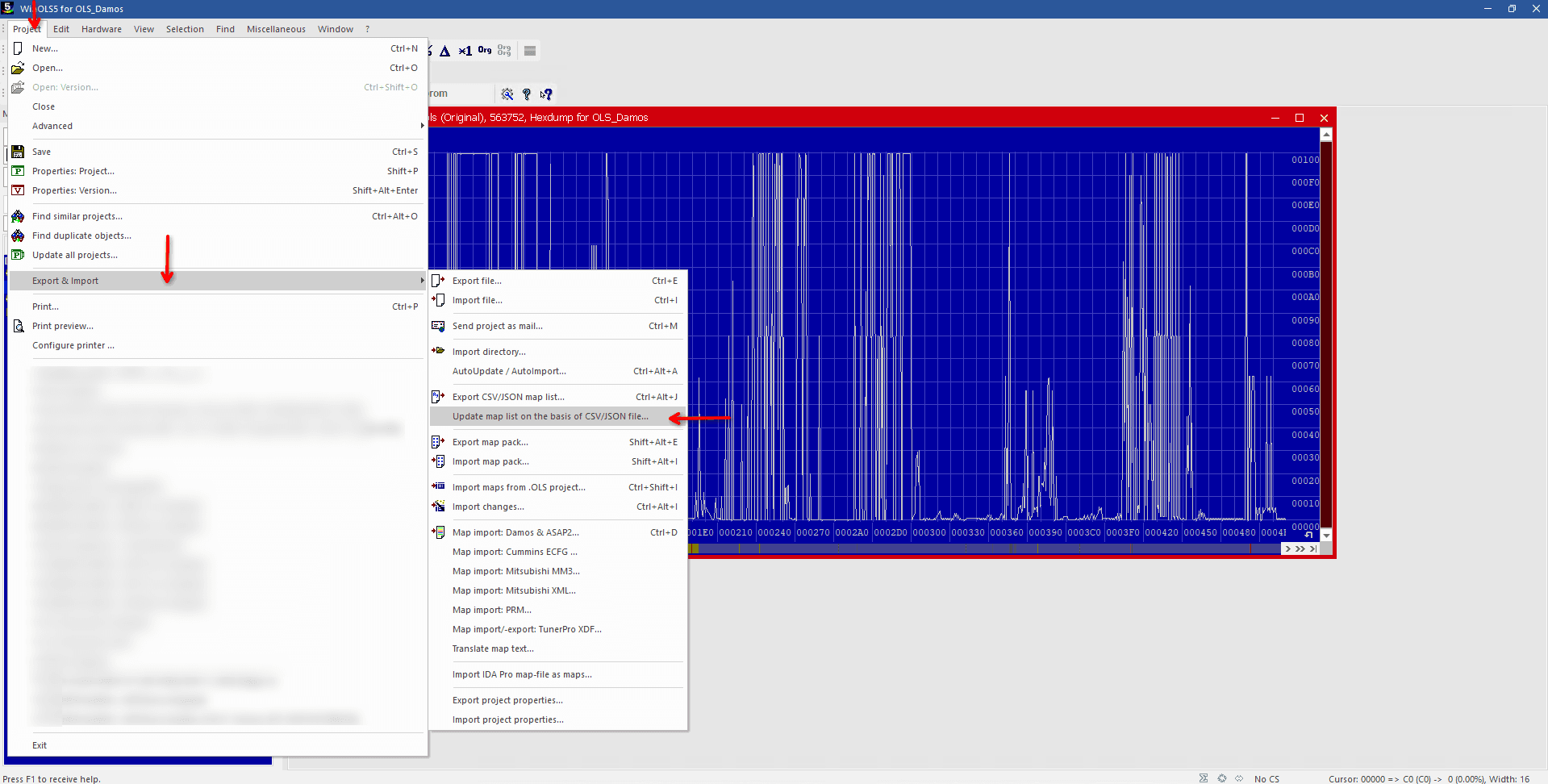
Open the CSV import command in WinOLS
In WinOLS, open Project → Export & import → Update map list on the basis of CSV/JSON file…. Select the CSV downloaded from ECU Maps.
STEP 2
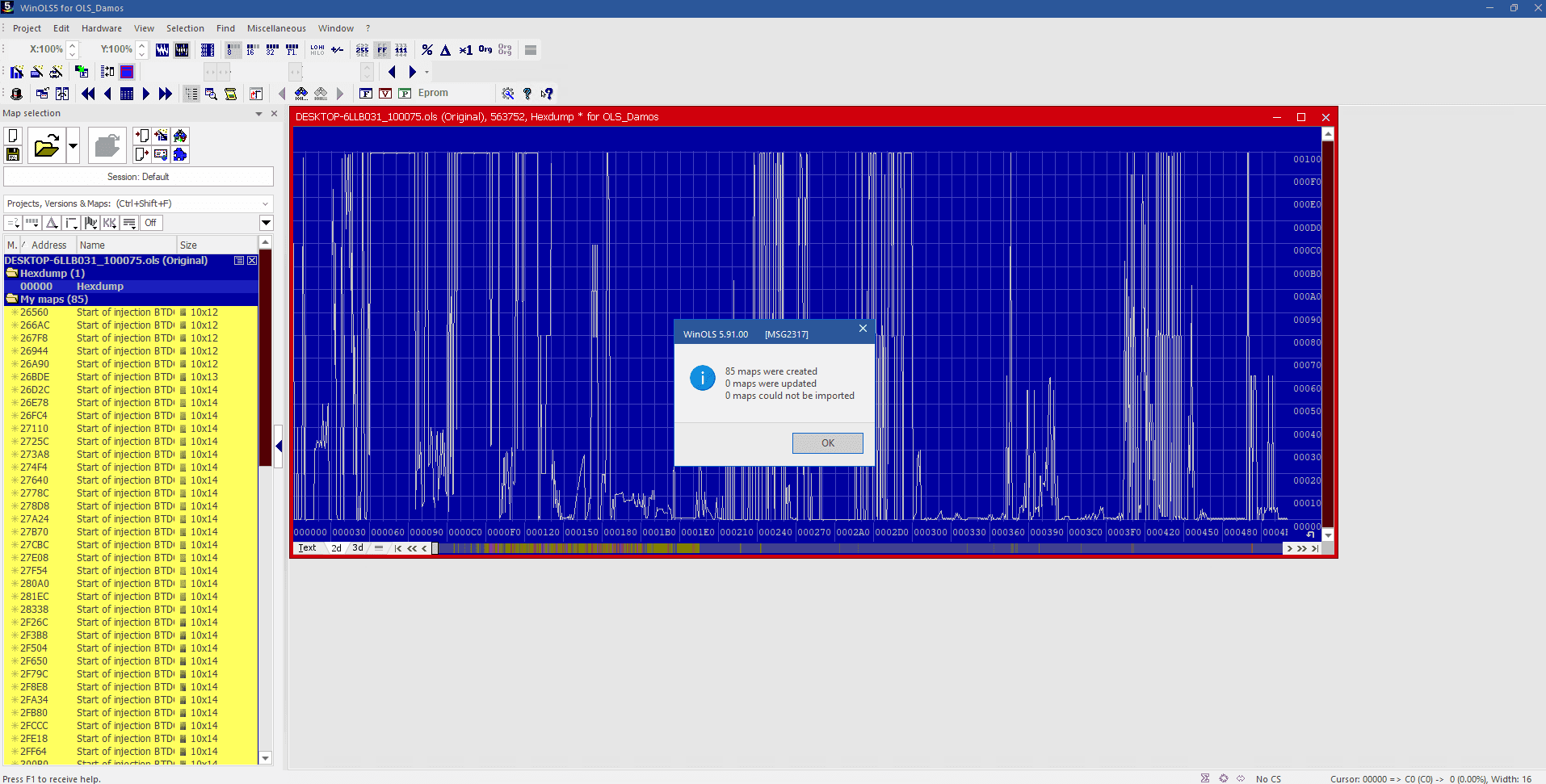
Confirm the import result
WinOLS reports how many maps were created, updated, or could not be imported. Select OK, then confirm that the new entries appear under My maps.
STEP 3
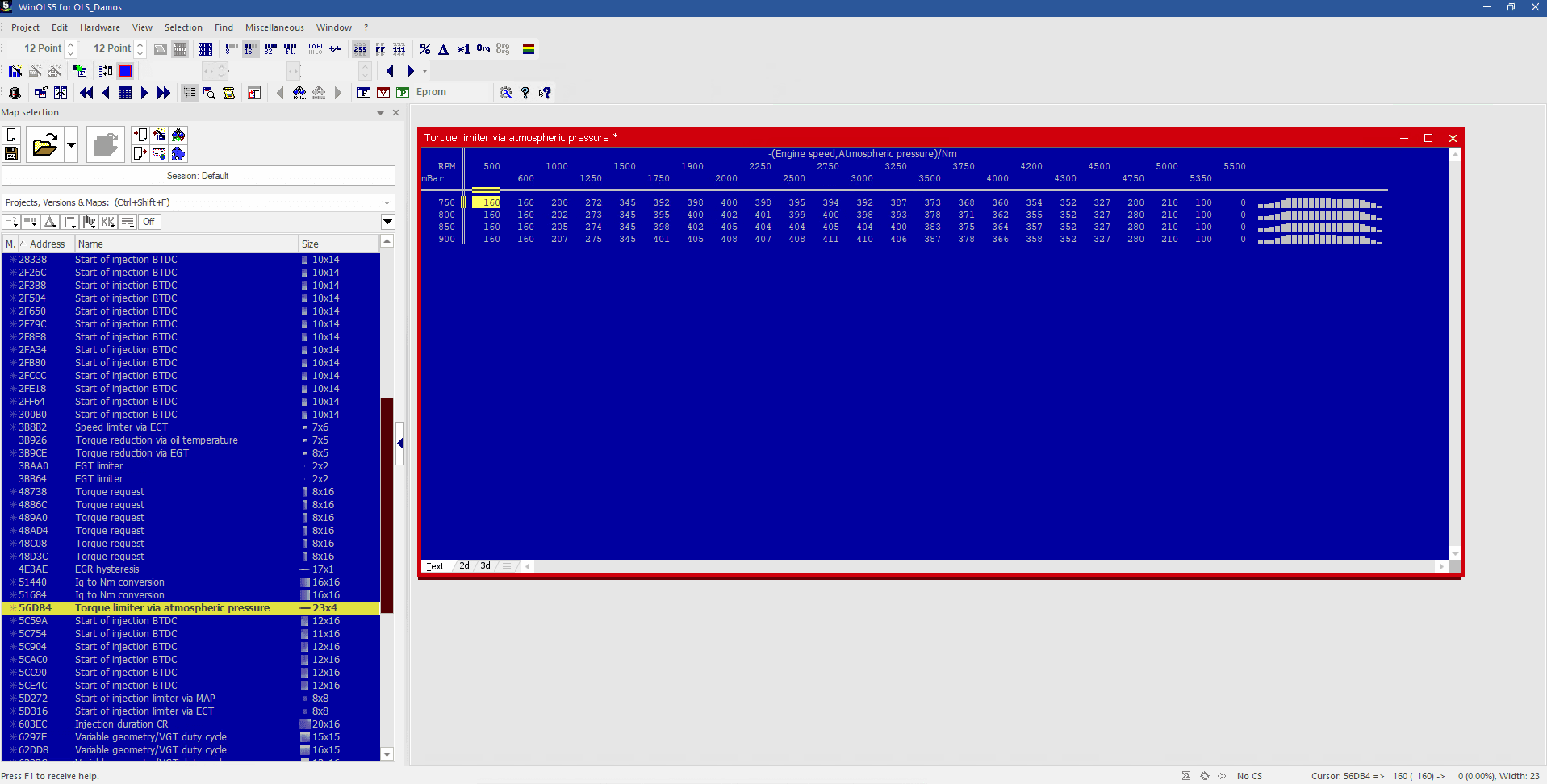
Open a map and verify before tuning
Open individual maps and inspect their values, addresses, axes, factors, units, labels, and dimensions. Treat every imported map as a starting point and verify it before modifying firmware.